Printer Printing Blank Pages Fix — The Invisible Ink Mystery
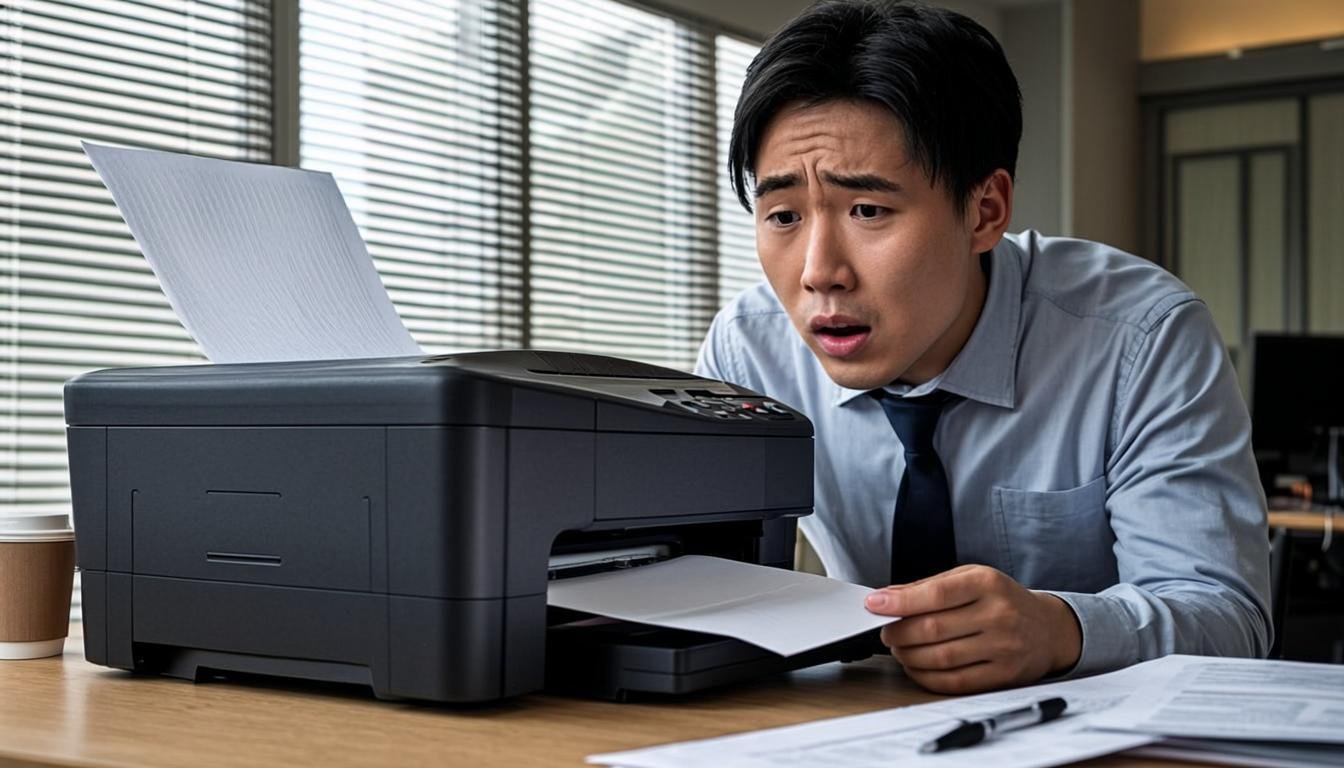
Your printer sounds like it's printing. The paper feeds through. The printhead moves back and forth. But the page comes out completely blank. Congratulations, you've been visited by the invisible ink ghost.
NexCircuit Technologies
Independent Online Printer Troubleshooting & Setup Assistance
Updated on 2025-03-30
The Invisible Ink Ghost Has Arrived
There you are, needing to print something important, and your printer decides to go all invisible ink on you. The paper feeds through, the printhead zips back and forth like it's actually doing something, and then — a perfectly blank page slides out. It's like watching someone mime printing. The printer thinks it printed. The paper went through the motions. But there's absolutely nothing on the page. It's almost impressive, really — the dedication to producing a completely blank sheet of paper with such confidence and enthusiasm.
But impressive or not, you need your document printed, so let's figure out what's going on and fix it. The invisible ink problem is more common than you'd think, and it's usually one of a few specific causes.
Step 1: Check Your Ink Levels (Yes, Really Check)
I know, I know — you just put new cartridges in. But check anyway. Sometimes cartridges are installed incorrectly, the protective tape wasn't removed (don't laugh, it happens to the best of us), or the printer simply isn't recognizing the cartridge. For HP and Canon printers, check ink levels through the printer software or HP Smart / Canon PRINT app. For Epson EcoTank, physically look at the tanks — are they actually full? Sometimes a refill doesn't go as planned and air gets trapped in the tubes. If the ink level shows empty or unknown, reinstall the cartridge making sure it clicks firmly into place and that little plastic tab is removed.
Step 2: Run the Printhead Cleaning Cycle
Clogged printhead nozzles are the number one cause of blank pages. Ink dries inside the microscopic nozzles when the printer sits unused for a while, blocking any new ink from coming through. Your printer has a built-in cleaning function that forces ink through the nozzles to clear blockages. Find it in your printer's maintenance menu or through the printer software on your computer. Run the cleaning cycle, then print a nozzle check pattern. If the pattern has gaps, run the cleaning again. You might need to do this 2-4 times for stubborn clogs. It uses some ink, but it beats staring at blank pages.
Step 3: Remove and Reinstall Ink Cartridges
Sometimes the printer just needs a fresh start with the cartridges. Power on the printer, open the cartridge access door, and wait for the carriage to stop moving. Remove each cartridge, check that the protective tape is removed (seriously, check again), wipe the copper contacts gently with a lint-free cloth, and reinstall them firmly. Make sure each cartridge clicks into place. Close the door and let the printer go through its alignment process. This simple reseat-and-reinstall fixes a surprising number of blank page issues — it's like the printer just needed to be reminded that the cartridges exist.
Step 4: Check the Printhead Alignment
A misaligned printhead can cause all sorts of printing weirdness, including blank pages. Run the printhead alignment tool from your printer's maintenance menu. This usually involves printing an alignment page and then either letting the printer scan it automatically or selecting the best-aligned patterns on the page. Proper alignment ensures the nozzles are firing ink precisely where it should go, rather than missing the paper entirely (which, yes, can actually happen with badly misaligned printheads).
Step 5: Use Genuine Ink Cartridges
Look, I get it — genuine ink cartridges are expensive, and third-party alternatives are tempting. But here's the thing: many printer manufacturers design their printers to work specifically with genuine cartridges. Some even use microchips on the cartridges that the printer verifies before printing. If the chip isn't recognized, the printer might go through all the motions of printing but not actually fire any ink. If you're using refilled or third-party cartridges and getting blank pages, try switching to genuine cartridges. It's not the cheapest fix, but it's often the one that works.
Step 6: Clean the Printhead Manually
If the automated cleaning cycles aren't doing the job, you might need to get hands-on. Remove the printhead (the assembly that holds the cartridges — check your printer's manual for instructions) and gently clean the nozzles with a lint-free cloth dampened with warm water or a printhead cleaning solution. Don't use alcohol or harsh chemicals — they can damage the printhead. Some people swear by soaking the printhead nozzles in warm water for a few minutes to dissolve stubborn clogs. Be gentle and patient, and let everything dry completely before reinstalling.
When It's Time to Replace the Printhead
If you've tried everything — cleaning cycles, manual cleaning, new cartridges, alignment — and you're STILL getting blank pages, your printhead might be permanently damaged or dead. Printheads have a finite lifespan, and if they've been running dry or overheating, they can fail completely. Replacement printheads are available for most printers, and they're not always expensive. For some printers, the printhead is integrated into the cartridge, so replacing the cartridge replaces the printhead (HP, we're looking at you). For others, it's a separate component. Check your printer model for availability and pricing.
Frequently Asked Questions
Why is my printer printing blank pages with full ink?
Full ink cartridges don't guarantee ink flow. Clogged printhead nozzles are the most common cause — dried ink blocks the microscopic nozzles even when cartridges are full. Run 2-4 printhead cleaning cycles and check the nozzle pattern after each one.
How do I fix my HP printer printing blank pages?
For HP printers, run the printhead cleaning cycle from HP Smart or the printer menu, remove and reinstall the ink cartridges, ensure the protective tape is removed, and check that you're using genuine HP cartridges. If the issue persists, the printhead may need replacement.
Can a printer printhead be permanently damaged?
Yes, printheads can be permanently damaged by running the printer with empty cartridges (which causes the nozzles to overheat), using incompatible inks, or from normal wear over time. If multiple cleaning cycles don't restore printing, the printhead likely needs replacement.
Related Articles

How to Fix HP Printer Offline Issue — Complete Guide 2025
Is your HP printer showing as offline even though it is connected? This is one of the most common printer issues that affects thousands of users daily. In this comprehensive guide, we walk you through every possible solution to get your HP printer back online and printing again.

Epson EcoTank Not Printing Black — Complete Fix Guide
One of the most frustrating issues with Epson EcoTank printers is when black ink stops printing while colors work fine. This comprehensive guide covers every possible cause and solution, from simple printhead cleaning cycles to more advanced troubleshooting steps.
How to Fix a Printer Paper Jam — Universal Guide for All Brands
Paper jams are the most common printer problem across all brands and models. Whether you have an HP, Canon, Epson, or Brother printer, the basic principles for clearing a paper jam are the same. This universal guide walks you through the safe and proper way to clear jams and prevent them from happening again.
Need more help with your printer? NexCircuit Technologies provides independent online printer troubleshooting and setup assistance 24/7. Our certified technicians can remotely diagnose and fix any printer issue — from offline errors and WiFi connectivity problems to driver installations and error code resolution. We support all major printer brands including HP, Canon, Epson, Brother, Xerox, and more. Contact us today for free initial consultation.