Printer Ink Cartridge Errors — Fix for All Major Brands
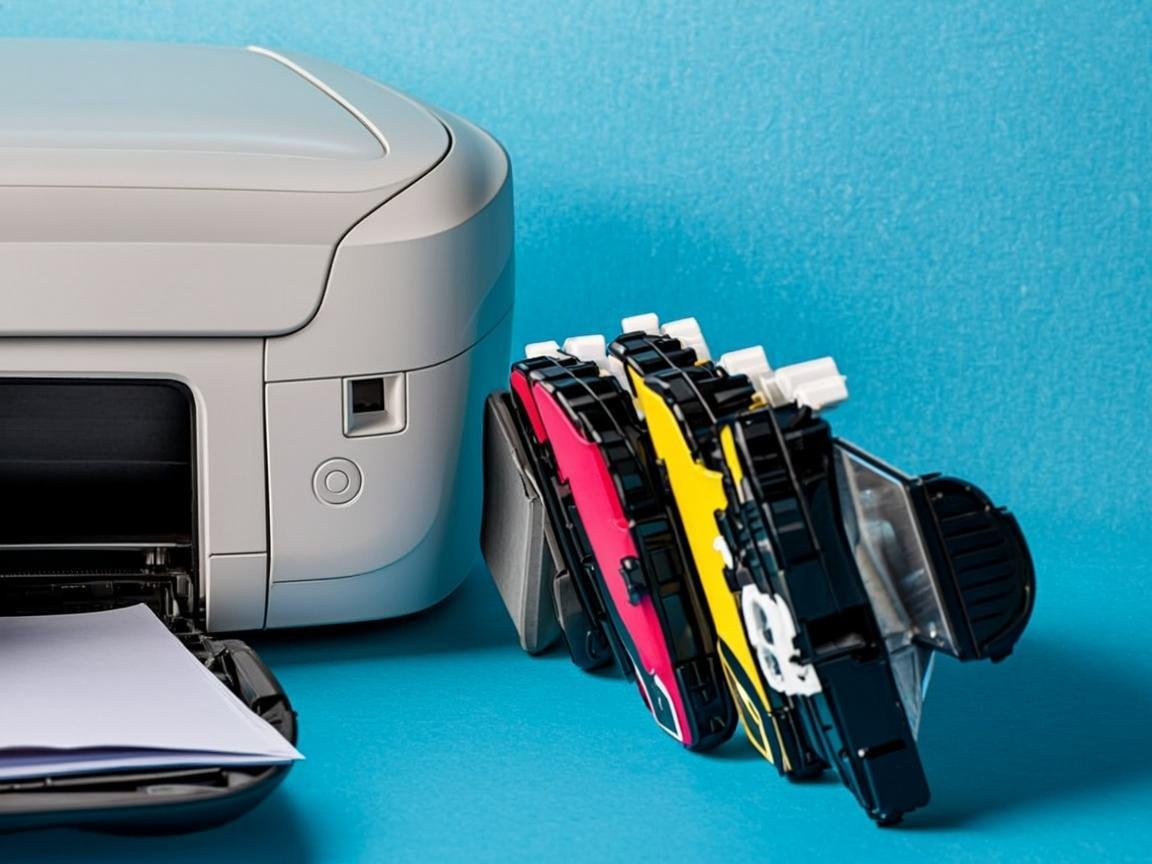
Ink cartridge errors are among the most frustrating printer issues, especially when you have just installed a new cartridge. This guide covers all common cartridge-related errors for HP, Canon, Epson, and Brother printers, with specific solutions for each brand.
NexCircuit Technologies
Independent Online Printer Troubleshooting & Setup Assistance
Updated on 2025-03-30
Common Ink Cartridge Errors
Ink cartridge errors typically fall into three categories: unrecognized cartridge (printer doesn't detect the cartridge), cartridge error (detected but malfunctioning), and low/empty ink warnings (even with a full cartridge). These errors can occur with both OEM and third-party cartridges, though they are more common with non-genuine ink.
HP Ink Cartridge Errors
HP printers may show "Cartridge Problem," "Incompatible Cartridge," or "Cartridge Missing" errors. Remove the cartridge and clean the copper contacts with a lint-free cloth dampened with distilled water. Reinsert firmly until it clicks. If using HP Instant Ink cartridges, ensure your subscription is active. HP printers with firmware updates may block non-HP cartridges — check for firmware rollback options if needed.
Canon Ink Cartridge Errors
Canon printers display errors like "U052," "Check Ink," or "Cartridge Cannot Be Recognized." Remove the cartridge and check for the protective tape — many users forget to remove it before installation. Clean the electrical contacts on both the cartridge and inside the printer. Press and hold the Stop/Reset button for 5-10 seconds to bypass the warning on non-genuine cartridge detection.
Epson Ink Cartridge Errors
Epson printers may show "Cartridge Not Recognized" or "Replace Ink Cartridge." Ensure you are using the correct cartridge model for your specific printer. Remove and reseat the cartridge. For EcoTank models, ensure the ink tank caps are properly closed and the tubes are not pinched. Epson printers may not recognize refilled cartridges — use the genuine Epson ink bottles for EcoTank models.
Brother Ink Cartridge Errors
Brother printers show "No Cartridge," "Cartridge Error," or "Replace Cartridge." Open the ink cartridge cover, remove the indicated cartridge, and reinstall it firmly. Check for protective seals. For INKvestment Tank models, ensure the ink bottles are properly seated and the fill caps are closed. Brother printers have a setting to continue printing in grayscale when a color cartridge is empty.
Frequently Asked Questions
Can I use non-genuine ink cartridges in my printer?
Non-genuine cartridges may work but can cause recognition errors, lower print quality, and may void your warranty. Some printer firmware updates specifically block third-party cartridges. If using non-genuine ink, check your printer manufacturer's policy.
Why does my printer say low ink when I just replaced the cartridge?
The ink level sensor may need resetting. Remove the cartridge, power off the printer, wait 30 seconds, power on, and reinstall. For some models, you need to reset the ink counter through the printer menu or service mode.
Related Articles

How to Fix HP Printer Offline Issue — Complete Guide 2025
Is your HP printer showing as offline even though it is connected? This is one of the most common printer issues that affects thousands of users daily. In this comprehensive guide, we walk you through every possible solution to get your HP printer back online and printing again.

Epson EcoTank Not Printing Black — Complete Fix Guide
One of the most frustrating issues with Epson EcoTank printers is when black ink stops printing while colors work fine. This comprehensive guide covers every possible cause and solution, from simple printhead cleaning cycles to more advanced troubleshooting steps.
How to Fix a Printer Paper Jam — Universal Guide for All Brands
Paper jams are the most common printer problem across all brands and models. Whether you have an HP, Canon, Epson, or Brother printer, the basic principles for clearing a paper jam are the same. This universal guide walks you through the safe and proper way to clear jams and prevent them from happening again.
Need more help with your printer? NexCircuit Technologies provides independent online printer troubleshooting and setup assistance 24/7. Our certified technicians can remotely diagnose and fix any printer issue — from offline errors and WiFi connectivity problems to driver installations and error code resolution. We support all major printer brands including HP, Canon, Epson, Brother, Xerox, and more. Contact us today for free initial consultation.