HP Smart App Complete Guide — Master Your HP Printer Like a Pro
The HP Smart app can turn your phone into a printing powerhouse — when it actually works. Here's your complete guide to setting it up, using every feature, and fixing it when things go sideways.
NexCircuit Technologies
Independent Online Printer Troubleshooting & Setup Assistance
Updated on 2025-04-03
HP Smart App — Your Printer's Best Friend (Most of the Time)
Look, I'm not going to pretend the HP Smart app is perfect. Sometimes it works like an absolute dream — you tap print from your phone and boom, beautiful pages come out. Other times it can't find your printer that's literally three feet away, and you find yourself questioning the entire concept of wireless technology. But when it works, it's genuinely fantastic. You can print from your phone, scan documents, check ink levels, and order supplies — all without touching a computer. So let's get it set up properly and learn how to use every feature, so you can spend less time fighting with the app and more time actually printing things.
Getting Started — HP Smart App Setup
First things first — download the HP Smart app. It's available for free on iOS, Android, Windows, and macOS. Make sure your phone or computer is connected to the same WiFi network as your HP printer before you start. Open the app and create an HP account (or sign in if you already have one). Tap "Add Printer" and the app will search for HP printers on your network. Select your printer from the list and follow the on-screen instructions to complete the setup. If the app can't find your printer, make sure WiFi is turned on for both devices, they're on the same network, and your printer isn't in sleep mode (press any button on the printer to wake it up).
Printing From Your Phone — The Whole Point
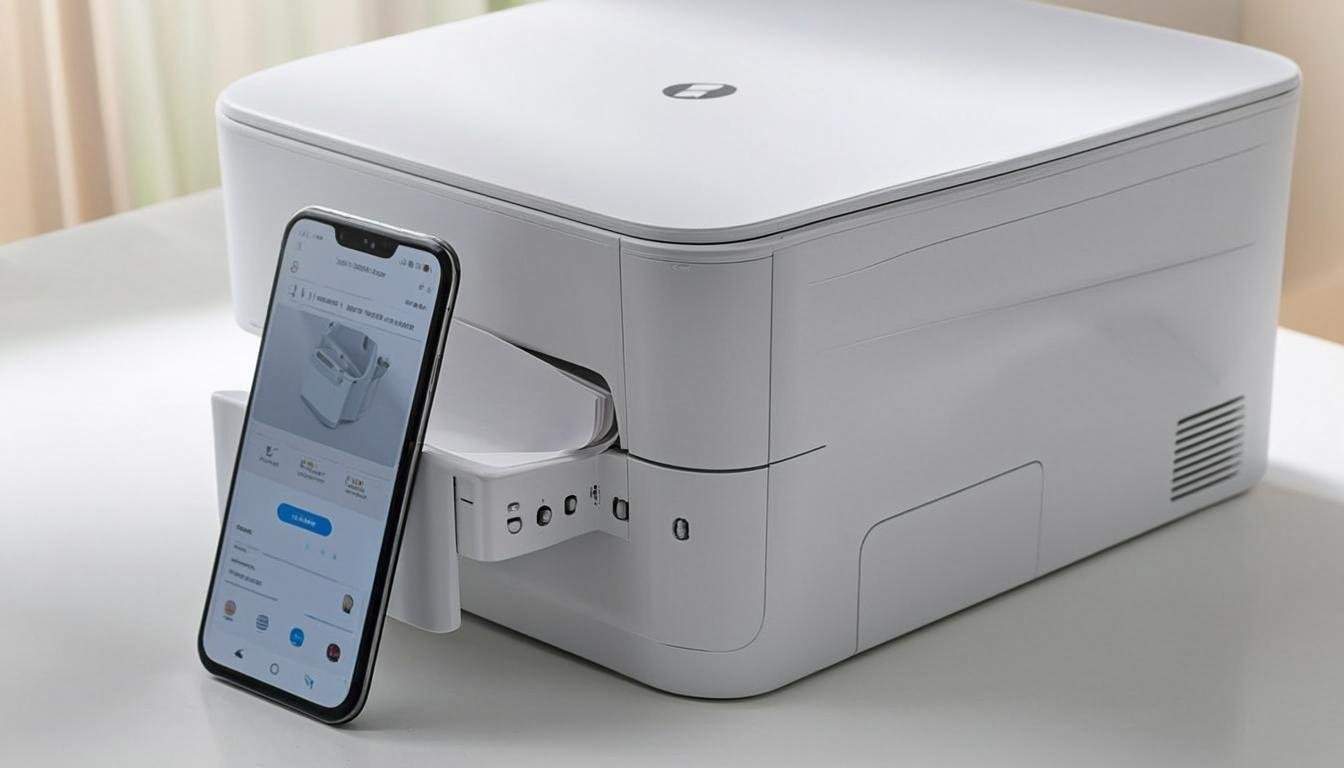
Here's where HP Smart shines. Once your printer is set up in the app, printing from your phone is delightfully easy. You can print photos directly from your camera roll, documents from your phone's storage, web pages, and even content from cloud storage services like Google Drive, Dropbox, and iCloud. Just tap the Print icon in the app, select what you want to print, adjust your settings (paper size, color or black and white, number of copies), and hit Print. You can also print from any other app on your phone by using the Share button and selecting HP Smart as the destination. It's seriously convenient once you get the hang of it.
Scanning — Your Phone Becomes a Scanner
The HP Smart app lets you scan documents in two ways. If your HP printer has a scanner, you can use the app to trigger a scan from the printer's scanner bed. The scanned document appears on your phone, and you can save it as a PDF or image, email it, or save it to cloud storage. But here's the really cool part — HP Smart also has a phone camera scanning feature. Just point your phone's camera at a document, and the app automatically detects the edges, straightens the image, and enhances the text readability. It's not quite as good as a flatbed scanner for high-quality work, but for quick document scanning, it's surprisingly capable and way more convenient than firing up the actual scanner.
Checking Ink Levels and Ordering Supplies
No more guessing when your ink is about to run out. The HP Smart app shows you real-time ink levels for all your cartridges right on the home screen. When ink is running low, you can order replacements directly through the app with a few taps. If you're enrolled in HP Instant Ink, the app manages your subscription, shows your monthly page count, and handles plan changes. HP Instant Ink is actually a pretty sweet deal for some people — your printer automatically orders ink when it's running low, and you pay a monthly fee based on pages printed rather than ink used. Worth considering if you print regularly.
Printer Settings and Maintenance
The HP Smart app gives you access to your printer's settings without having to navigate the tiny control panel on the printer itself. You can adjust print quality settings, run printhead cleaning cycles, align the printhead, check estimated ink levels, and view the printer's network configuration. There's also a diagnostic tool that can automatically detect and fix common printer issues. If your printer is acting up, run the diagnostic before you start troubleshooting manually — it can save you a lot of time and frustration.
Fixing HP Smart When It Won't Find Your Printer
This is the single most common complaint about the HP Smart app, and it usually comes down to one of these issues. First, are your phone and printer on the same WiFi network? I know it sounds obvious, but many homes have separate 2.4GHz and 5GHz networks, and if your phone is on 5GHz while the printer is on 2.4GHz, they can't see each other. Second, try restarting both the app and your printer. Third, make sure your printer's firmware is up to date — you can check this through the app or on the printer's web interface. Fourth, if you have a VPN running on your phone, try turning it off — VPNs can block local network discovery. And fifth, as a last resort, remove the printer from the app and add it again from scratch.
HP Smart Scan Not Working — Quick Fixes
If the scan feature specifically isn't working (but printing is fine), here are the usual fixes. Make sure the scanner driver is installed — printing and scanning use different drivers, so one can work while the other doesn't. Restart the HP Smart app and try again. If you're using WiFi, scanning large documents requires a stable connection — weak WiFi can cause scan failures while printing works fine. Try connecting your printer via USB temporarily to see if scanning works. If it does, the WiFi connection is your issue. Also check that your printer's scanner isn't locked — some models have a transport lock that disables the scanner mechanism.
Tips and Tricks for Power Users
Want to get even more out of HP Smart? Set up Shortcuts for common tasks — like one-tap scanning to PDF and emailing, or printing a daily schedule. Use the Mobile Fax feature (available on select HP printers) to send faxes from your phone without a phone line. Enable Print Anywhere to print to your home printer from anywhere with an internet connection — it's like having your home printer in your pocket. And set up Custom Presets for your most-used print settings so you don't have to configure them every time. These features aren't always obvious, but they make the app significantly more useful once you know they're there.
Frequently Asked Questions
Why can't HP Smart find my printer?
The most common reason is that your phone and printer are on different WiFi networks (especially if one is on 2.4GHz and the other on 5GHz). Also check that the printer is awake, the app has the latest update, your phone's VPN is off, and Bluetooth is enabled on your phone (HP Smart uses Bluetooth for initial printer discovery).
Can I print from my phone with HP Smart?
Yes, HP Smart lets you print photos, documents, web pages, and cloud-stored files directly from your phone to your HP printer. You can also print from any other app using the Share button and selecting HP Smart as the destination.
Is HP Smart app free to use?
Yes, the HP Smart app is completely free to download and use. All core features including printing, scanning, ink level monitoring, and printer setup are free. HP Instant Ink subscription and premium print services are optional paid features.
Related Articles

How to Fix HP Printer Offline Issue — Complete Guide 2025
Is your HP printer showing as offline even though it is connected? This is one of the most common printer issues that affects thousands of users daily. In this comprehensive guide, we walk you through every possible solution to get your HP printer back online and printing again.

Canon PIXMA TS3522 Wireless Setup Guide — Step by Step
Setting up your Canon PIXMA TS3522 on a wireless network is straightforward when you follow the right steps. This guide walks you through the complete wireless setup process for Windows, Mac, and mobile devices, so you can start printing from anywhere in your home or office.

Brother Printer WiFi Setup — Complete Guide for All Models
Connecting your Brother printer to a wireless network allows you to print from any device on your home or office network. This guide covers WiFi setup for all popular Brother printer models including MFC, HL, and INKvestment series, with specific instructions for Windows, Mac, and mobile devices.
Need more help with your printer? NexCircuit Technologies provides independent online printer troubleshooting and setup assistance 24/7. Our certified technicians can remotely diagnose and fix any printer issue — from offline errors and WiFi connectivity problems to driver installations and error code resolution. We support all major printer brands including HP, Canon, Epson, Brother, Xerox, and more. Contact us today for free initial consultation.