Windows 11 Blue Screen Fix — Surviving the BSOD Apocalypse
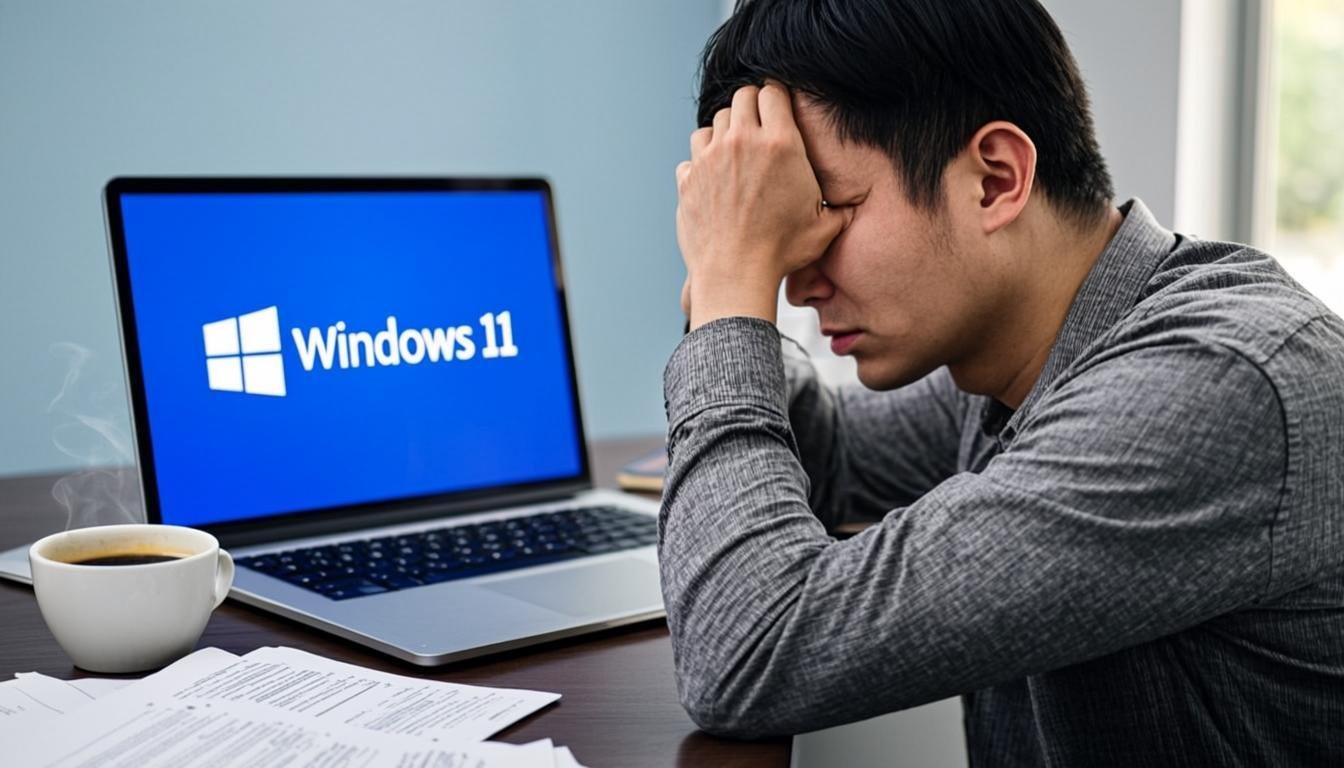
The blue screen of doom. The BSOD. Whatever you call it, watching your Windows 11 PC suddenly crash to that dreaded blue screen is enough to make anyone's heart skip a beat. Here's how to fight back.
NexCircuit Technologies
Independent Online Printer Troubleshooting & Setup Assistance
Updated on 2025-03-20
The Blue Screen of Doom — We Feel Your Pain
You're just minding your own business, maybe editing a document or watching a video, and BAM — your screen turns blue, some cryptic error message flashes at you, and your PC restarts. If it happens once, you brush it off. When it keeps happening, you start questioning every life choice that led you to this moment. The Windows 11 blue screen of death (BSOD) is terrifying, frustrating, and somehow always seems to strike right when you haven't saved your work. We've all been there, and we're going to get through this together.
First, take a deep breath. The blue screen isn't the end of the world — it's actually Windows trying to protect your hardware from damage. When something goes seriously wrong at the system level, Windows stops everything immediately to prevent data corruption or hardware damage. Think of it as your PC's emergency brake. Annoying? Absolutely. But it's better than letting a bad driver fry your hardware.
Understanding Stop Codes — The BSOD's Secret Language
Every blue screen displays a "stop code" — a short phrase like CRITICAL_PROCESS_DIED or IRQL_NOT_LESS_OR_EQUAL that tells you what went wrong. Write this down (or snap a photo with your phone) because it's your first clue. Common Windows 11 stop codes include: KERNEL_SECURITY_CHECK_FAILURE (usually driver issues), SYSTEM_SERVICE_EXCEPTION (faulty driver or system service), MEMORY_MANAGEMENT (RAM problems), and DRIVER_IRQL_NOT_LESS_OR_EQUAL (network or display driver conflict). Don't worry if it looks like gibberish — we'll translate it into actual fixes.
Step 1: Undo Recent Changes
Did the blue screens start after a Windows update, a new driver installation, or new hardware? There's your answer. Roll back the change. For Windows updates, go to Settings > Windows Update > Update history > Uninstall updates. For drivers, open Device Manager, right-click the recently updated device, select Properties > Driver > Roll Back Driver. If you added new hardware (RAM, SSD, etc.), remove it and see if the crashes stop. This is detective work 101 — if something changed right before the crashes started, that something is probably your culprit.
Step 2: Update or Roll Back Drivers
Bad drivers are the number one cause of BSODs in Windows 11. The usual suspects? Display drivers (NVIDIA, AMD, Intel), network adapters, and audio drivers. Open Device Manager and check for any devices with yellow warning icons. Update your display driver by downloading it directly from NVIDIA, AMD, or Intel — don't rely on Windows Update for GPU drivers, it often installs outdated or incompatible versions. If updating doesn't help, try rolling back to the previous driver version. Sometimes the newest driver is actually the problem, which is deeply ironic.
Step 3: Run Windows Memory Diagnostic
Faulty RAM causes some of the most unpredictable and frustrating BSODs because the symptoms change every time. Windows 11 has a built-in memory diagnostic tool — press Windows + R, type "mdsched.exe," and hit Enter. Choose to restart now and check for problems. Your PC will restart and run a thorough memory test (it takes 10-20 minutes). If it finds errors, your RAM is likely failing and needs to be replaced. If you have multiple RAM sticks, try removing them one at a time to identify which one is bad.
Step 4: Check Your Storage Drive Health
A failing SSD or hard drive can cause BSODs with codes like CRITICAL_PROCESS_DIED or UNEXPECTED_STORE_EXCEPTION. Open Task Manager, go to the Performance tab, and check your disk usage. If it's stuck at 100% even when you're not doing anything, or if you hear clicking sounds from a hard drive, your drive might be failing. Download CrystalDiskInfo (it's free) to check your drive's S.M.A.R.T. health status. If it shows "Caution" or "Bad," back up your data IMMEDIATELY and replace the drive. Like, right now. Seriously.
Step 5: System File Checker and DISM
Corrupted system files can trigger BSODs with seemingly no pattern. Open Command Prompt as Administrator and run "sfc /scannow" — this scans and repairs corrupted system files. It takes about 10-15 minutes. If SFC finds problems it can't fix, run "DISM /Online /Cleanup-Image /RestoreHealth" next. DISM downloads clean system files from Windows Update and replaces the corrupted ones. Together, these two commands fix a surprising number of blue screen issues, especially after a botched Windows update.
Step 6: Clean Boot to Find the Culprit
If you're still getting BSODs, a clean boot can help isolate the problem. Press Windows + R, type "msconfig," go to the Services tab, check "Hide all Microsoft services," then click "Disable all." Restart your PC. If the crashes stop, one of those disabled services was the cause. Re-enable services in small groups until the crashes return, and you've found your culprit. It's tedious, but it works. Think of it as a process of elimination — like figuring out which ingredient in a recipe is making everyone sick.
When to Consider a Fresh Install
If nothing else works and your PC keeps crashing, a clean Windows 11 installation might be the nuclear option you need. Back up your files, create a Windows 11 installation USB, and do a clean install. Yes, you'll need to reinstall your apps and set everything up again, but it's often faster than spending weeks chasing a ghost BSOD. Sometimes the system is just too corrupted to fix piecemeal, and starting fresh is the cleanest path forward.
Frequently Asked Questions
What causes blue screen errors in Windows 11?
The most common causes are faulty or outdated drivers, failing hardware (especially RAM and storage drives), corrupted system files, incompatible Windows updates, and overheating. The stop code displayed on the blue screen helps identify the specific cause.
How do I find what caused my Windows 11 blue screen?
Note the stop code on the blue screen, then check Event Viewer (eventvwr.msc) under Windows Logs > System for critical errors around the crash time. You can also use BlueScreenView or WinDbg to analyze the minidump files in C:\Windows\Minidump for detailed crash information.
Can a blue screen damage my computer?
The BSOD itself is a protective mechanism and won't damage your hardware. However, the underlying issue causing it (overheating, failing hardware) can cause damage if left unfixed. Frequent improper shutdowns from BSODs can also corrupt files on your storage drive over time.
Related Articles

How to Fix a Printer Paper Jam — Universal Guide for All Brands
Paper jams are the most common printer problem across all brands and models. Whether you have an HP, Canon, Epson, or Brother printer, the basic principles for clearing a paper jam are the same. This universal guide walks you through the safe and proper way to clear jams and prevent them from happening again.
Wireless Printer Setup Complete Guide — Connect Any Printer to WiFi
Setting up a wireless printer can seem daunting, but it doesn't have to be. This comprehensive guide covers WiFi setup for HP, Canon, Epson, and Brother printers on Windows, Mac, iOS, and Android devices. Follow the simple steps for your specific combination and start printing wirelessly in minutes.
Printer Driver Unavailable Error — Fix for Windows & Mac
The "printer driver is unavailable" error is a common issue that prevents printing on both Windows and Mac. This guide provides step-by-step solutions for all major printer brands, helping you download the correct drivers and get your printer working again.
Need more help with your printer? NexCircuit Technologies provides independent online printer troubleshooting and setup assistance 24/7. Our certified technicians can remotely diagnose and fix any printer issue — from offline errors and WiFi connectivity problems to driver installations and error code resolution. We support all major printer brands including HP, Canon, Epson, Brother, Xerox, and more. Contact us today for free initial consultation.