WiFi Keeps Disconnecting — End the Maddening WiFi Roulette
You're in the middle of a video call and — boom — your WiFi drops. Again. Welcome to WiFi roulette, where your connection drops at the absolute worst possible moment. Here's how to fix it for good.
NexCircuit Technologies
Independent Online Printer Troubleshooting & Setup Assistance
Updated on 2025-03-26
WiFi Roulette — The Game Nobody Wants to Play
You know exactly what I'm talking about. You're in an important Zoom call and your WiFi decides it needs a break. You're downloading a huge file and the progress bar just stops. You're streaming your favorite show and suddenly you're staring at a buffering wheel that mocks you with its endless spinning. WiFi roulette is that special kind of frustration where your internet connection drops at the worst possible moment, reconnects briefly, then drops again — over and over and over. It's enough to make anyone consider moving to a cabin in the woods with no technology whatsoever.
But before you start shopping for cabins, let's fix this. WiFi disconnections are almost always solvable, and the culprit is usually one of a handful of common issues. Let's track down your particular WiFi gremlin and send it packing.
Step 1: Restart Your Router and Modem (The Classic)
Yeah, I know. "Have you tried restarting it?" is the most cliché tech advice ever. But here's why it actually works for WiFi drops: your router is basically a tiny computer that's been running 24/7 for months (or years). Memory leaks pile up, the wireless channel gets congested, and the router just gets... tired. Unplug both your modem and router, wait a full 60 seconds (not 10 — give it time to fully discharge), then plug the modem in first. Wait for all its lights to stabilize, then plug in the router. This clears the router's memory, refreshes the DHCP assignments, and often picks a less congested WiFi channel. It's like giving your router a fresh start.
Step 2: Move Closer to Your Router (or Move the Router)
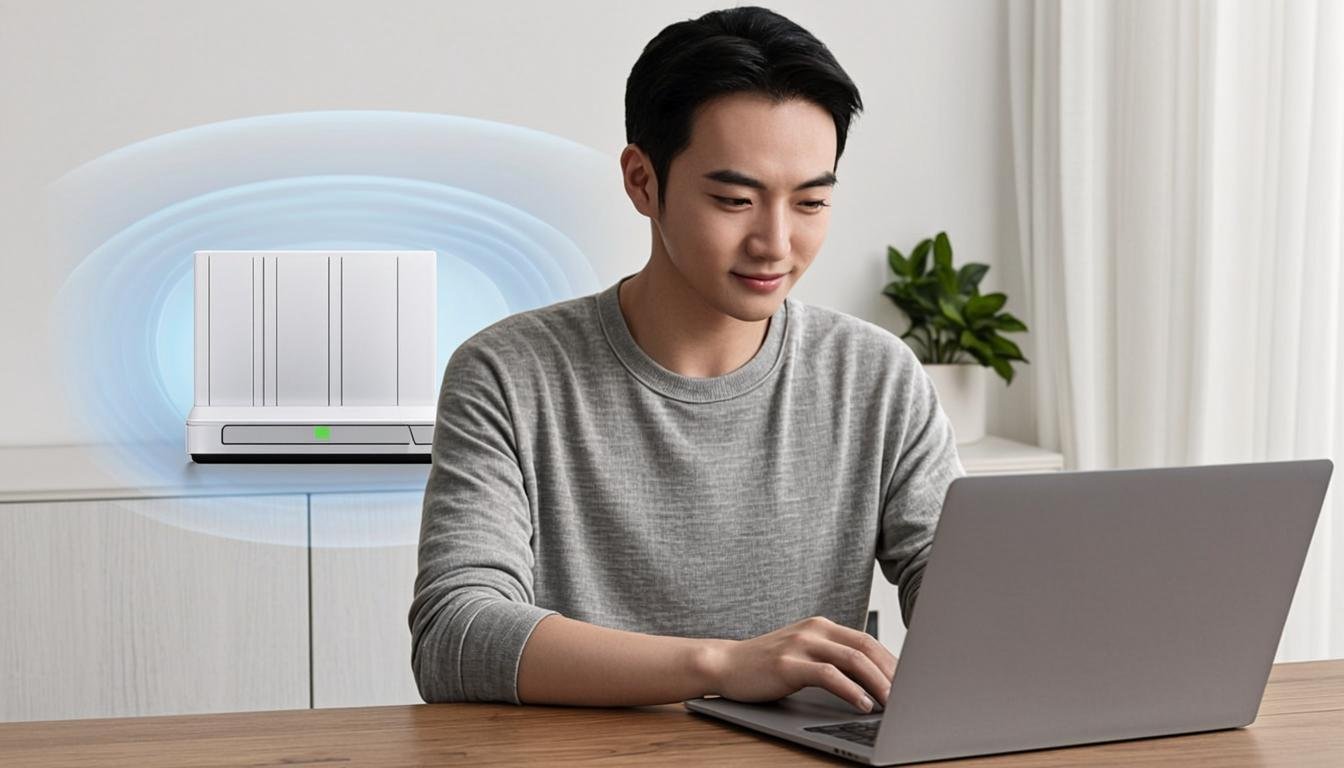
WiFi signals degrade with distance and obstacles. Every wall, floor, and large metal object between you and the router weakens the signal. If you're getting two bars or less, that's probably why you keep disconnecting. Try moving closer to the router to see if the disconnections stop. If they do, you've found the issue. The fix? Move your router to a more central location in your home — not in a corner, not in a closet, not behind a TV. Ideally, it should be elevated (on a shelf, not the floor) and in an open area. Yes, it might be ugly sitting on a bookshelf, but at least your WiFi will work.
Step 3: Switch WiFi Channels
Your router broadcasts on a specific WiFi channel, and if your neighbors' routers are on the same channel, you're all fighting for the same airtime. It's like trying to have a conversation in a room where everyone is shouting. Log into your router's admin panel (usually 192.168.1.1 or 192.168.0.1 — the address is on a sticker on your router), find the wireless settings, and change the channel. For 2.4GHz, try channels 1, 6, or 11 (they don't overlap). For 5GHz, there are more options and less congestion. You can use a free WiFi analyzer app on your phone to see which channels are least crowded in your area.
Step 4: Update Your WiFi Driver on Windows 11
If your WiFi keeps disconnecting on your Windows 11 laptop specifically, the WiFi adapter driver might be the problem. Right-click the Start button, select Device Manager, find your WiFi adapter under Network adapters, right-click it, and select "Update driver." Choose "Search automatically for drivers." If Windows doesn't find an update, go to your laptop manufacturer's website and download the latest WiFi driver manually. This is a surprisingly common fix — WiFi drivers are updated frequently, and an outdated one can cause random disconnections, especially after a Windows update.
Step 5: Disable WiFi Power Management
Windows 11 has a "helpful" feature that turns off your WiFi adapter to save power. Great for battery life, terrible for connection stability. Open Device Manager, find your WiFi adapter, right-click and select Properties. Go to the Power Management tab and uncheck "Allow the computer to turn off this device to save power." Then open Settings > Network & Internet > Advanced network settings > Change adapter options, right-click your WiFi connection, select Properties, click Configure, and check the Power Management tab there too. This single setting change has fixed more WiFi disconnection issues than I can count.
Step 6: Check for Router Overload
How many devices are connected to your WiFi? If you've got phones, tablets, laptops, smart TVs, gaming consoles, smart home devices, and that one random IoT gadget you forgot about — your router might be overwhelmed. Budget routers can typically handle 15-20 devices before getting unstable. Check your router's connected devices list and disconnect anything that shouldn't be there (including that neighbor who might be mooching your WiFi). If you have a lot of legitimate devices, it might be time to upgrade to a router that can handle the load — or add a mesh WiFi system for better coverage and capacity.
When It's Your ISP's Fault
Sometimes the problem isn't your router, your device, or your settings — it's your internet service provider. If you notice the disconnections happen at around the same time every day, or if your modem's lights change pattern during the drops, your ISP might be having intermittent outages or signal issues. Call them and ask them to check your line quality and signal levels. They can often see problems on their end that you can't see on yours. And if they say "everything looks fine" but you're still having issues, ask them to send a technician to check the physical connection at your house.
Frequently Asked Questions
Why does my WiFi keep disconnecting randomly?
Random WiFi disconnections are usually caused by router congestion, outdated WiFi drivers, Windows power management turning off the adapter, weak signal strength, or too many connected devices. Start by restarting your router, then work through the driver and power management settings on your device.
How do I stop Windows 11 from disconnecting WiFi?
Disable WiFi power management in Device Manager (uncheck "Allow the computer to turn off this device to save power"), update your WiFi adapter driver from the manufacturer's website, and set your WiFi network to connect automatically. These three fixes resolve most Windows 11 WiFi disconnection issues.
Can my neighbors' WiFi cause mine to disconnect?
Yes, if your router and your neighbors' routers are using the same WiFi channel, they can interfere with each other and cause disconnections. Log into your router and change to a less congested channel. Use a WiFi analyzer app to find the least crowded channel in your area.
Related Articles

How to Fix a Printer Paper Jam — Universal Guide for All Brands
Paper jams are the most common printer problem across all brands and models. Whether you have an HP, Canon, Epson, or Brother printer, the basic principles for clearing a paper jam are the same. This universal guide walks you through the safe and proper way to clear jams and prevent them from happening again.
Wireless Printer Setup Complete Guide — Connect Any Printer to WiFi
Setting up a wireless printer can seem daunting, but it doesn't have to be. This comprehensive guide covers WiFi setup for HP, Canon, Epson, and Brother printers on Windows, Mac, iOS, and Android devices. Follow the simple steps for your specific combination and start printing wirelessly in minutes.
Printer Driver Unavailable Error — Fix for Windows & Mac
The "printer driver is unavailable" error is a common issue that prevents printing on both Windows and Mac. This guide provides step-by-step solutions for all major printer brands, helping you download the correct drivers and get your printer working again.
Need more help with your printer? NexCircuit Technologies provides independent online printer troubleshooting and setup assistance 24/7. Our certified technicians can remotely diagnose and fix any printer issue — from offline errors and WiFi connectivity problems to driver installations and error code resolution. We support all major printer brands including HP, Canon, Epson, Brother, Xerox, and more. Contact us today for free initial consultation.