How to Remove a Virus from Windows — The Survival Guide
That sinking feeling when you realize your PC might be infected — pop-ups everywhere, programs you didn't install, your browser acting possessed. Don't panic. Here's exactly how to fight back and reclaim your computer.
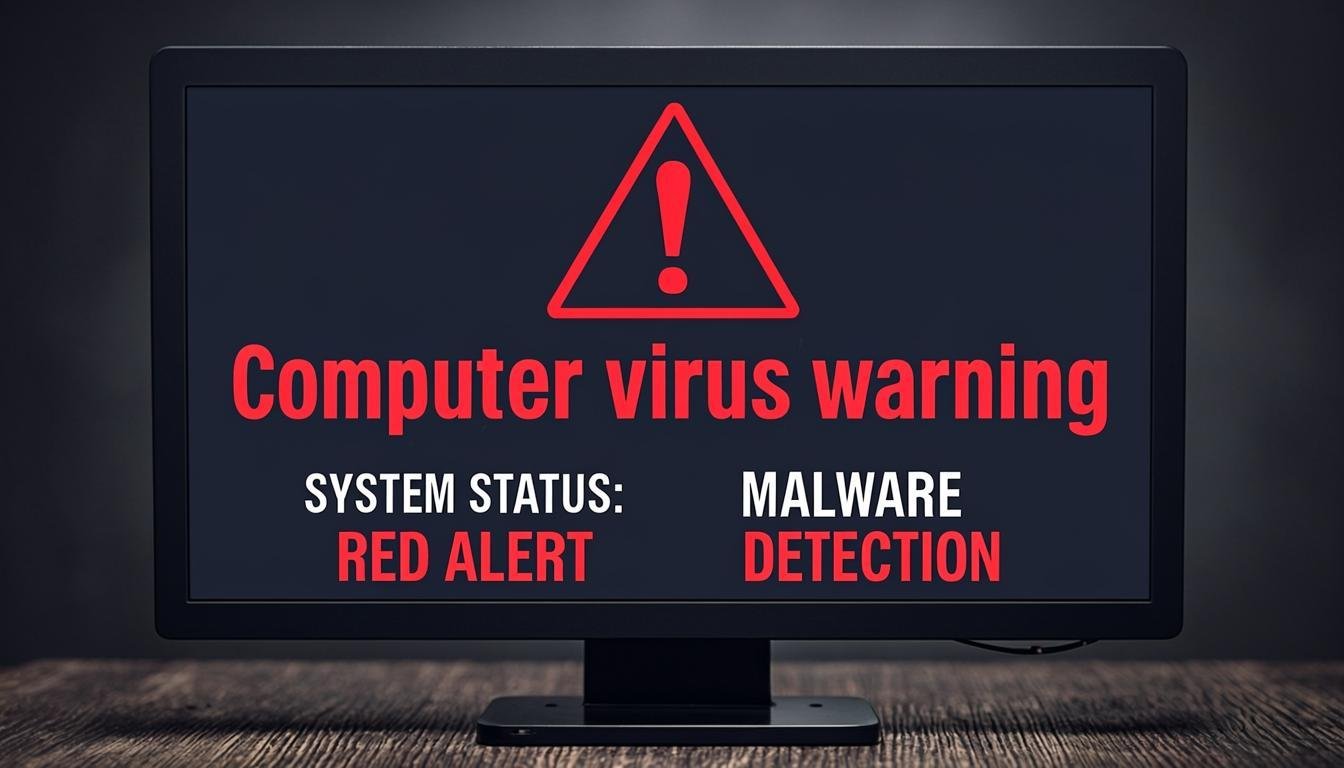
NexCircuit Technologies
Independent Online Printer Troubleshooting & Setup Assistance
Updated on 2025-03-24
Oh No — Your PC Might Be Infected
Let's talk about that heart-stopping moment. You're minding your own business and suddenly there are pop-ups everywhere. Your browser has a new toolbar you definitely didn't install. Programs are running that you've never heard of. Maybe your computer is suddenly slower than a snail in molasses. You've got that awful feeling in the pit of your stomach — "Is my computer infected?" Take a breath. We're going to get through this together, step by step, and you're going to come out the other side with a clean machine.
Signs Your Windows PC Has a Virus
Before we start removing anything, let's confirm the diagnosis. Common signs of a virus infection include: programs opening and closing on their own, excessive pop-ups (especially ones telling you to "click here" to fix a problem — oh the irony), your browser redirecting to strange websites, new toolbars or extensions you didn't install, your PC running painfully slow for no apparent reason, files that have disappeared or been encrypted, and friends telling you they're getting weird messages from your email or social media. If you're experiencing two or more of these, there's a pretty good chance you've got an unwelcome guest on your PC.
Step 1: Disconnect from the Internet
This might seem dramatic, but hear me out. Many modern viruses communicate with their command servers over the internet — they download more malware, send your personal data to criminals, or wait for instructions. By disconnecting from the internet (turn off WiFi or unplug the Ethernet cable), you cut off their lifeline. This also prevents the virus from spreading to other devices on your network. Do this first, before you do anything else. Think of it like quarantine — you don't want the infection spreading while you're figuring out how to treat it.
Step 2: Boot into Safe Mode
Safe Mode starts Windows with only the bare minimum of drivers and services. Most viruses won't load in Safe Mode, which makes them way easier to remove. Restart your PC, and as it's booting up, hold down the Shift key while clicking Restart from the power menu. Choose Troubleshoot > Advanced Options > Startup Settings > Restart. When the menu appears, press 4 or F4 for Safe Mode. Your screen will look weird and low-resolution — that's normal. Safe Mode isn't pretty, but it's effective.
Step 3: Delete Temporary Files
Viruses love hiding in temporary files. Before running a full scan, clear them out. Press Windows + R, type "%temp%" and hit Enter. Delete everything in that folder (some files might be in use — skip those). Then do the same with "temp" and "prefetch." This removes potential hiding spots and also speeds up the virus scan. Think of it as clearing the brush so you can see what you're hunting.
Step 4: Run a Full System Scan with Windows Defender
Windows 11 comes with Windows Defender built in, and it's actually gotten really good. Open Windows Security (search for it in the Start menu), go to Virus & Threat Protection, and click "Scan options." Choose "Full scan" — not the quick scan. A full scan checks every file on your computer, which takes an hour or more but is thorough. Go grab a coffee, watch a movie, or take a walk. When it's done, let Defender quarantine or remove anything it finds.
Step 5: Use a Second Opinion Scanner
No single antivirus catches everything, so it's smart to get a second opinion. Download Malwarebytes Free (the free version, not the trial) and run a full scan. Malwarebytes is specifically designed to catch the stuff that traditional antivirus misses — adware, potentially unwanted programs, and sneakier malware. It works alongside Windows Defender without conflicts. Run the scan, remove everything it finds, and restart your PC. Two scanners are better than one, and in this case, that second opinion can make all the difference.
Step 6: Check Your Browser Extensions and Startup Programs
Even after removing the main virus, leftover browser extensions and startup programs can cause problems. Open your browser settings, go to Extensions or Add-ons, and remove anything you don't recognize or don't need. Then press Ctrl + Shift + Esc to open Task Manager, go to the Startup tab, and disable anything suspicious. Unknown programs starting with Windows are a classic malware persistence trick — they reinfect your PC every time you boot up. Don't let them.
Ransomware — The Scariest Scenario
If your files have been encrypted and you're seeing a ransom note demanding payment — that's ransomware, and it's the worst type of infection. Here's the most important advice you'll ever read: DO NOT PAY THE RANSOM. Paying doesn't guarantee you'll get your files back, and it funds criminal activity. Instead, check the No More Ransom project (nomoreransom.org) — they have free decryption tools for many ransomware variants. Disconnect the infected PC from your network immediately to prevent the ransomware from spreading to other devices or network drives.
Preventing Future Infections
Once your PC is clean, keep it that way. Keep Windows and all your software updated. Don't click links in suspicious emails (even from people you know — their accounts could be compromised). Use an ad blocker in your browser. Don't download software from sketchy websites. Back up your important files regularly to an external drive or cloud storage — if the worst happens, you'll have your data safe. And run regular scans with Windows Defender. A little prevention goes a long, long way.
Frequently Asked Questions
Can Windows Defender remove all viruses?
Windows Defender is effective against most common malware, but no single antivirus catches 100% of threats. For best results, run a full scan with Windows Defender first, then use a second-opinion scanner like Malwarebytes Free to catch anything Defender might have missed.
Should I pay a ransomware demand?
No, you should never pay a ransomware demand. Payment doesn't guarantee file recovery and funds criminal organizations. Instead, disconnect from the network immediately and check nomoreransom.org for free decryption tools that may work for your specific ransomware variant.
How do I know if a virus is completely gone?
After removal, monitor your PC for a few days. If the symptoms are gone (no pop-ups, no strange processes, normal performance), run another full scan with both Windows Defender and Malwarebytes. If both come back clean and your PC is running normally, the virus is likely gone.
Related Articles

How to Fix a Printer Paper Jam — Universal Guide for All Brands
Paper jams are the most common printer problem across all brands and models. Whether you have an HP, Canon, Epson, or Brother printer, the basic principles for clearing a paper jam are the same. This universal guide walks you through the safe and proper way to clear jams and prevent them from happening again.
Wireless Printer Setup Complete Guide — Connect Any Printer to WiFi
Setting up a wireless printer can seem daunting, but it doesn't have to be. This comprehensive guide covers WiFi setup for HP, Canon, Epson, and Brother printers on Windows, Mac, iOS, and Android devices. Follow the simple steps for your specific combination and start printing wirelessly in minutes.
Printer Driver Unavailable Error — Fix for Windows & Mac
The "printer driver is unavailable" error is a common issue that prevents printing on both Windows and Mac. This guide provides step-by-step solutions for all major printer brands, helping you download the correct drivers and get your printer working again.
Need more help with your printer? NexCircuit Technologies provides independent online printer troubleshooting and setup assistance 24/7. Our certified technicians can remotely diagnose and fix any printer issue — from offline errors and WiFi connectivity problems to driver installations and error code resolution. We support all major printer brands including HP, Canon, Epson, Brother, Xerox, and more. Contact us today for free initial consultation.