How to Clean a Printer Printhead — All Brands Guide
A clogged printhead causes streaky prints, missing colors, and poor print quality. This guide covers automated and manual printhead cleaning methods for HP, Canon, Epson, and Brother printers, helping you restore print quality without expensive service calls.
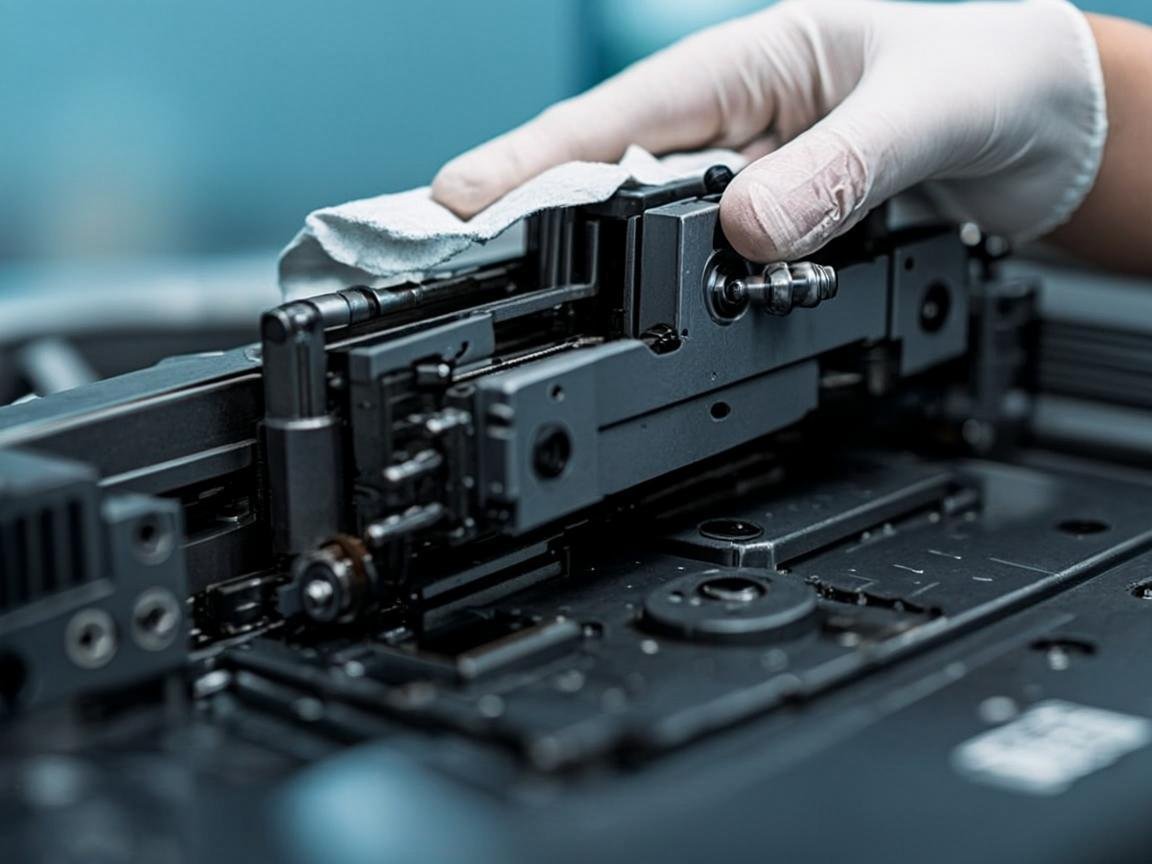
NexCircuit Technologies
Independent Online Printer Troubleshooting & Setup Assistance
Updated on 2025-03-20
Signs of a Clogged Printhead
A clogged printhead manifests in several ways: horizontal lines or bands in prints, missing colors, faded output, or completely blank pages. Running a nozzle check pattern will show you exactly which nozzles are blocked. If the pattern has gaps or missing lines, your printhead needs cleaning. Regular maintenance cleaning prevents severe clogs that are harder to resolve.
HP Printhead Cleaning
Open the HP Smart app or printer software and navigate to Maintenance > Clean Printhead. Follow the on-screen instructions. HP printers offer multiple cleaning levels — start with the basic cleaning and escalate to the deeper cleaning only if needed, as deeper cleaning uses more ink. For manual cleaning, remove the printhead (on models where it is accessible), soak the nozzles in warm water for 10 minutes, then dry with a lint-free cloth before reinstalling.
Canon Printhead Cleaning
Access the cleaning function through the printer's menu or the Canon software. Select "Cleaning" or "Deep Cleaning." For PIXMA models, you can remove and clean the printhead manually. Soak the bottom of the printhead in warm water until ink flows freely, then dry thoroughly before reinstalling. Canon also offers a printhead alignment function that should be run after cleaning.
Epson Printhead Cleaning
Epson printers have a built-in cleaning cycle accessible through the control panel or Epson software. Run a nozzle check first, then cleaning if needed. For stubborn clogs, use the Power Cleaning option (uses more ink). For EcoTank models, ensure the ink tanks are not empty and the tubes are not pinched. Manual cleaning involves using a syringe with warm water to flush the printhead nozzles.
Brother Printhead Cleaning
Access the cleaning function through the printer menu or Brother software. Select "Ink Cleaning" or "Print Quality" troubleshooting. Brother inkjet printers may require multiple cleaning cycles for stubborn clogs. For the INKvestment Tank series, check that the ink tubes are properly connected and not kinked. Manual cleaning with a lint-free cloth dampened with isopropyl alcohol can help clear external nozzle blockages.
Frequently Asked Questions
How often should I clean my printer printhead?
Run a nozzle check and cleaning cycle whenever you notice degraded print quality. To prevent clogs, print at least one page per week to keep ink flowing. Store your printer in a temperature-controlled environment away from direct sunlight.
Can I use rubbing alcohol to clean my printhead?
Isopropyl alcohol (70% or higher) can be used to gently clean the exterior of the printhead and electrical contacts. However, never pour alcohol directly into the printhead nozzles, as it can damage the internal components. Use warm water for nozzle soaking instead.
Related Articles

How to Fix a Printer Paper Jam — Universal Guide for All Brands
Paper jams are the most common printer problem across all brands and models. Whether you have an HP, Canon, Epson, or Brother printer, the basic principles for clearing a paper jam are the same. This universal guide walks you through the safe and proper way to clear jams and prevent them from happening again.
Wireless Printer Setup Complete Guide — Connect Any Printer to WiFi
Setting up a wireless printer can seem daunting, but it doesn't have to be. This comprehensive guide covers WiFi setup for HP, Canon, Epson, and Brother printers on Windows, Mac, iOS, and Android devices. Follow the simple steps for your specific combination and start printing wirelessly in minutes.
Printer Driver Unavailable Error — Fix for Windows & Mac
The "printer driver is unavailable" error is a common issue that prevents printing on both Windows and Mac. This guide provides step-by-step solutions for all major printer brands, helping you download the correct drivers and get your printer working again.
Need more help with your printer? NexCircuit Technologies provides independent online printer troubleshooting and setup assistance 24/7. Our certified technicians can remotely diagnose and fix any printer issue — from offline errors and WiFi connectivity problems to driver installations and error code resolution. We support all major printer brands including HP, Canon, Epson, Brother, Xerox, and more. Contact us today for free initial consultation.