Data Recovery Guide — How to Recover Lost Files When Disaster Strikes
That heart-stopping moment when you realize your files are gone — the presentation, the photos, the tax documents. Before you spiral into panic, take a breath. There's a good chance you can get them back.
NexCircuit Technologies
Independent Online Printer Troubleshooting & Setup Assistance
Updated on 2025-04-01
The Moment Your Heart Stops
You know exactly what I'm talking about. That split second when you realize the folder where your important files lived is... empty. Or you accidentally hit Delete instead of Save. Or your computer just crashed and won't boot, and everything — EVERYTHING — was on that drive. Your stomach drops, your palms get sweaty, and your brain starts calculating just how many hours (or days, or weeks) of work just vanished into the digital void. It's a terrible feeling, and if you've never experienced it, count yourself lucky.
But here's the thing — and this is really important — deleted files are not always gone forever. In many cases, they're still on your hard drive, just hidden from view. The operating system marks the space as "available" but doesn't actually overwrite it until new data needs that space. This means the window between deleting a file and it being permanently overwritten is your rescue window, and with the right tools and a little luck, you can pull those files back from the brink.
Rule Number One: Stop Using the Drive
This is the single most important thing you'll read in this entire guide. The moment you realize you've lost files, STOP using that drive immediately. Every file you save, every program you run, every website you browse creates temporary files that could overwrite the very data you're trying to recover. If the lost files are on your main system drive (usually C:), minimize what you're doing. Close unnecessary programs. Don't download recovery software to the same drive — use a different drive or a USB stick. If the files are on an external drive, unplug it and don't plug it back in until you're ready to run recovery software. Think of it like a crime scene — don't disturb the evidence.
Step 1: Check the Recycle Bin (Obvious but Necessary)
I know, it sounds too simple. But you'd be amazed how many people skip this step in their panic. Open the Recycle Bin on your desktop and look for your files. If they're there, right-click and select "Restore" — they'll go right back to where they were. Even if you're pretty sure you used Shift+Delete (which bypasses the Recycle Bin), check anyway. Sometimes we remember things differently than they actually happened. It takes two seconds and it's the easiest possible fix.
Step 2: Check Cloud Backups and File History
Before diving into data recovery software, check if your files were backed up somewhere. If you use OneDrive, Google Drive, Dropbox, or any cloud storage, log in and check — they often keep deleted files for 30 days. Windows File History (if you had it enabled) keeps previous versions of files. Right-click the folder where your files were, select "Restore previous versions," and see if anything shows up. Also check Windows Backup if you set it up. It's always worth checking these options first because recovering from a backup is faster and more reliable than data recovery software.
Step 3: Use Free Data Recovery Software
If your files aren't in the Recycle Bin or a backup, it's time to bring out the big guns. Recuva (by CCleaner) is a free data recovery tool that's been trusted for years. Download it (remember, to a DIFFERENT drive than the one you're recovering from), install it, and run the wizard. Tell it what type of files you're looking for and where they were located. It'll scan the drive and show you what it can recover with a green/yellow/red indicator for each file's chance of recovery. Another solid free option is TestDisk, which is more technical but incredibly powerful for recovering lost partitions and deleted files.
Step 4: Deep Scan for Harder-to-Find Files
If the quick scan doesn't find your files, run a deep scan. This takes much longer (sometimes hours for large drives) because it reads every sector of the drive looking for file signatures. Recuva has this option, and so do other tools like EaseUS Data Recovery Wizard (free up to 2GB) and Disk Drill. A deep scan can find files even after the file system entries have been destroyed, but it can't recover files that have already been overwritten. The sooner you run the scan after data loss, the better your chances.
Step 5: Recovering Data from a Crashed PC
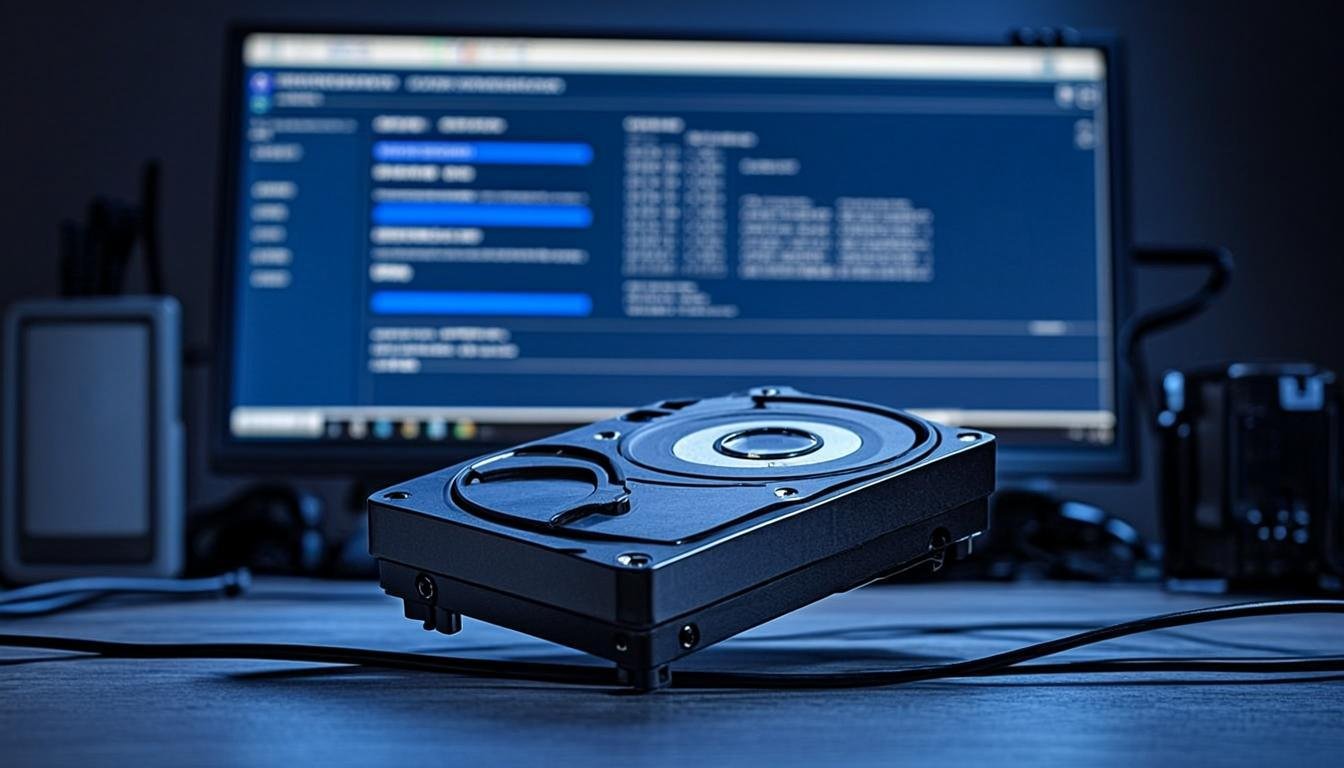
If your computer won't boot but the hard drive is still physically working, you can recover the data. Remove the hard drive from the dead computer (it's usually just a few screws), connect it to a working computer using a SATA-to-USB adapter (about $10-15 on Amazon), and access your files directly. The drive will appear as an external drive, and you can copy your important files to the working computer. If the drive doesn't appear or makes clicking sounds, it might have physical damage — in that case, stop trying to access it and contact a professional data recovery service. Continuing to run a failing drive can cause permanent data loss.
Step 6: When to Call a Professional Data Recovery Service
Professional data recovery isn't cheap — it typically starts at $300 and can go up to $2,000+ depending on the severity. But for irreplaceable data (family photos, business documents, creative work), it's often worth the cost. Call a professional if: your drive is making clicking, grinding, or beeping sounds; the drive isn't detected by the computer at all; the drive was physically damaged (dropped, water damage, fire); or you've tried software recovery and it failed. Professional services have clean rooms, specialized equipment, and expertise that no software tool can match. They can often recover data from drives that seem completely dead.
Preventing Future Data Loss (Learn From This!)
Once you've recovered your files (or accepted your loss), set up a backup system so this never happens again. The golden rule is the 3-2-1 backup strategy: 3 copies of your data, on 2 different types of storage, with 1 copy off-site. In practice, this means keeping your files on your computer, backing up to an external hard drive, and also backing up to cloud storage. Set it up to run automatically so you don't have to remember. Windows File History and Mac Time Machine are great for local backups. OneDrive, Google Drive, or Backblaze handle the cloud part. Do it now, before the next disaster. Future you will be incredibly grateful.
Frequently Asked Questions
Can I recover permanently deleted files from Windows?
Yes, permanently deleted files (even those bypassing the Recycle Bin) can often be recovered using data recovery software like Recuva, as long as the files haven't been overwritten. The key is to stop using the drive immediately after deletion and run recovery software as soon as possible.
How much does professional data recovery cost?
Professional data recovery typically costs $300-$2,000+ depending on the severity of the damage and the type of drive. Logical recovery (software-based) is less expensive, while physical recovery from damaged drives requiring clean room work costs more. Get a quote before committing.
Can data be recovered from a crashed hard drive?
If the drive is logically corrupted but physically intact, you can usually recover data by connecting it to another computer via a SATA-to-USB adapter. If the drive has physical damage (clicking sounds, not spinning), stop using it immediately and contact a professional data recovery service to avoid permanent data loss.
Related Articles

How to Fix a Printer Paper Jam — Universal Guide for All Brands
Paper jams are the most common printer problem across all brands and models. Whether you have an HP, Canon, Epson, or Brother printer, the basic principles for clearing a paper jam are the same. This universal guide walks you through the safe and proper way to clear jams and prevent them from happening again.
Wireless Printer Setup Complete Guide — Connect Any Printer to WiFi
Setting up a wireless printer can seem daunting, but it doesn't have to be. This comprehensive guide covers WiFi setup for HP, Canon, Epson, and Brother printers on Windows, Mac, iOS, and Android devices. Follow the simple steps for your specific combination and start printing wirelessly in minutes.
Printer Driver Unavailable Error — Fix for Windows & Mac
The "printer driver is unavailable" error is a common issue that prevents printing on both Windows and Mac. This guide provides step-by-step solutions for all major printer brands, helping you download the correct drivers and get your printer working again.
Need more help with your printer? NexCircuit Technologies provides independent online printer troubleshooting and setup assistance 24/7. Our certified technicians can remotely diagnose and fix any printer issue — from offline errors and WiFi connectivity problems to driver installations and error code resolution. We support all major printer brands including HP, Canon, Epson, Brother, Xerox, and more. Contact us today for free initial consultation.